
Here are the steps using Swagger:
- Register a client:
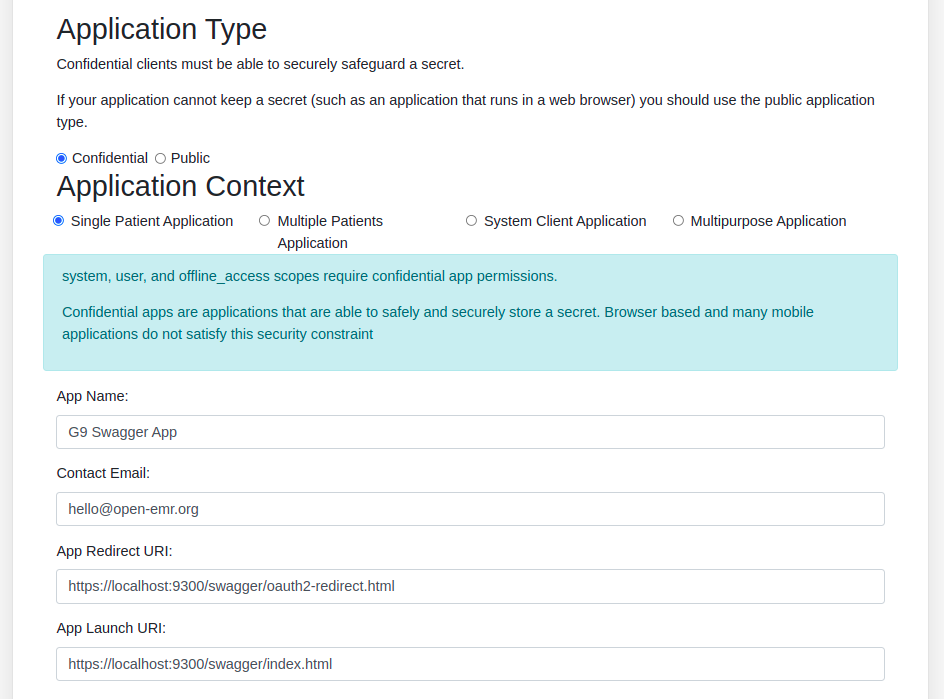
2. Provide the patient scopes and launch selector:

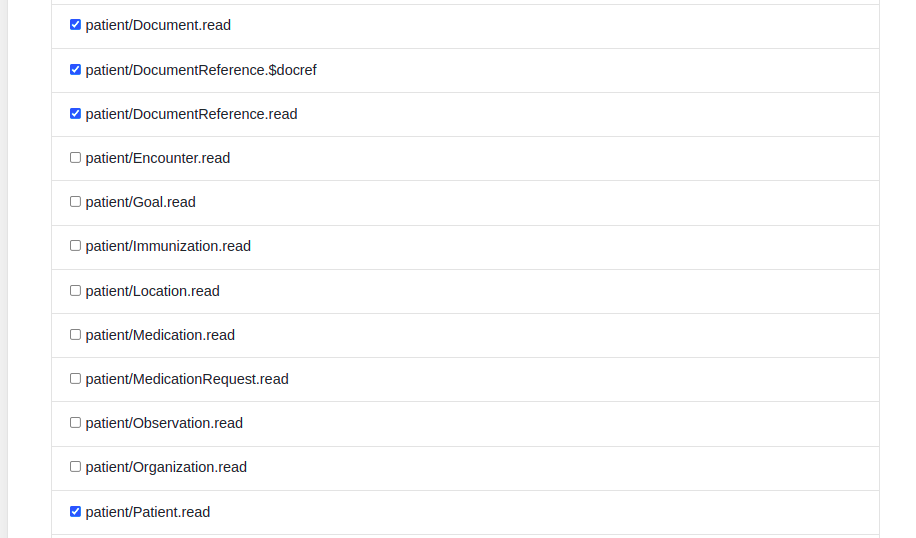
3. Make sure to link the patient information , DocumentReference, and Document scopes:
4. Go to Authorize in Swagger, be sure to request the same scopes that were selected during the registration:

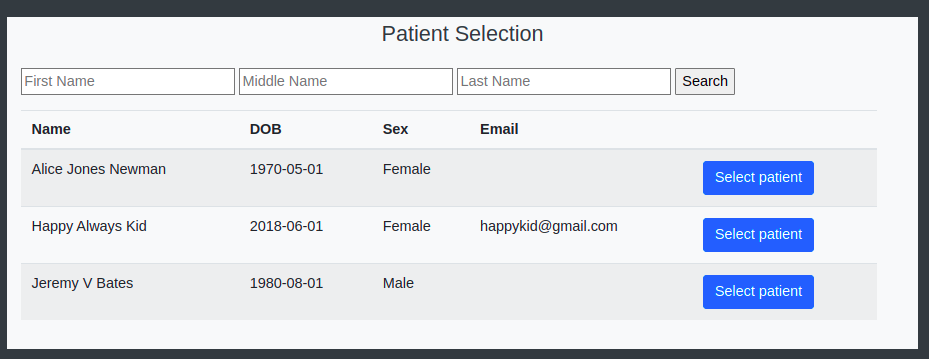
5. Log in using an Integrated Care EHR local account, and then select a patient (this is what the launch/patient scope provides)
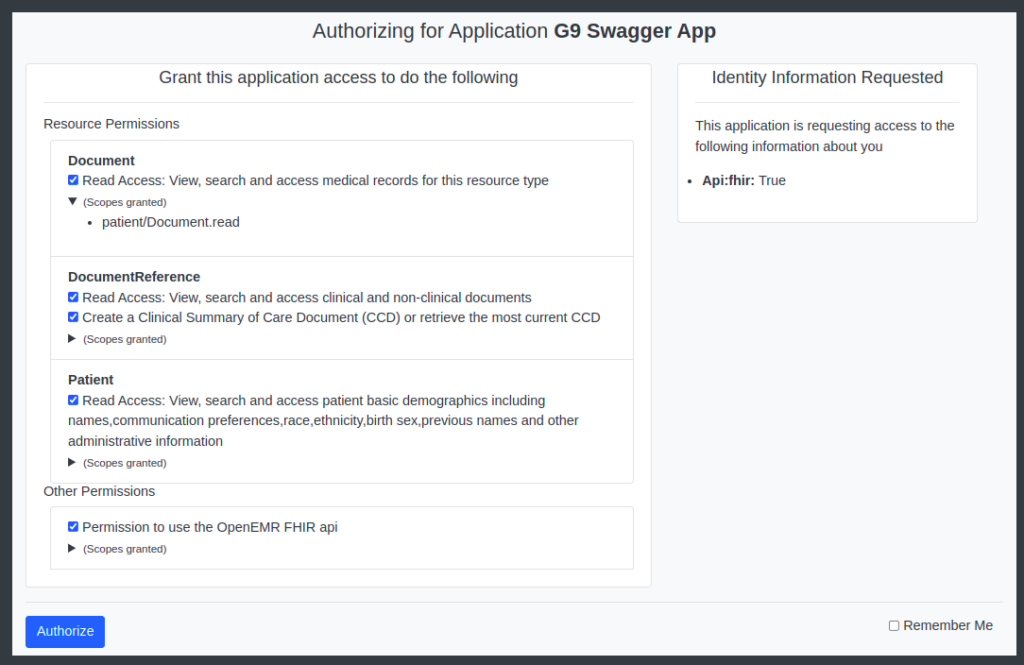
6. Now, authorize the scopes:
7. Next we must exchange the Patient ID, as Swagger doesn’t show this. We’ll do this by simply hitting the patient endpoint. Since a patient was selected with launch/endpoint, the fhir/Patient endpoint will return just the desired patient:
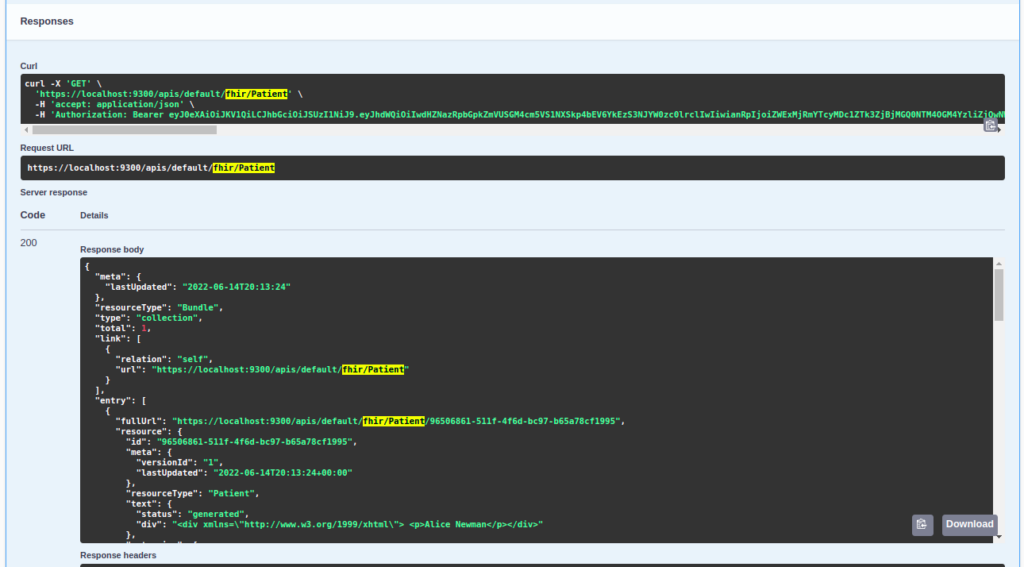
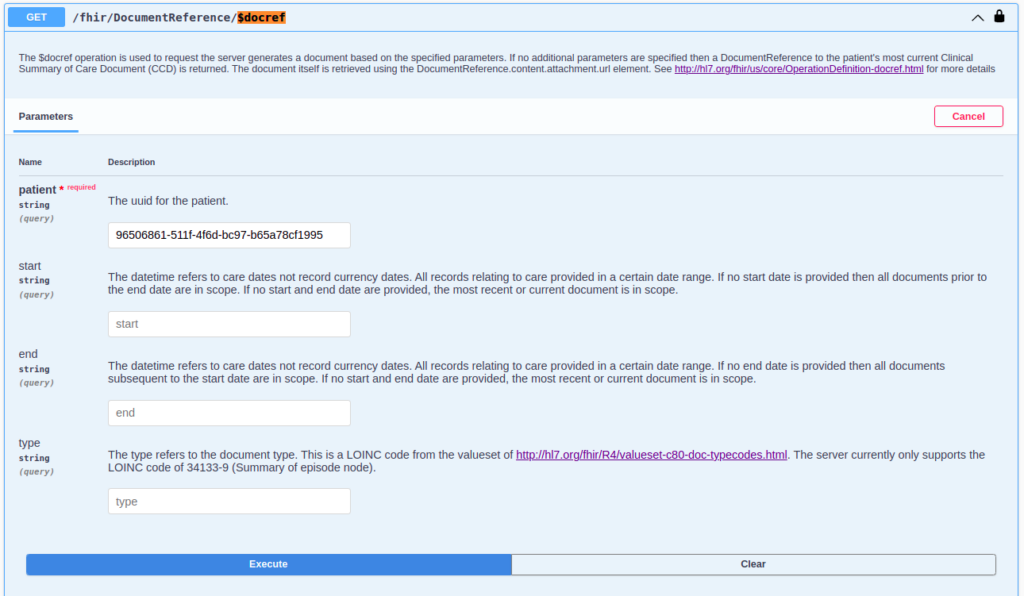
8. At this time, we take the patient UUID and plug it into the $docref endpoint to generate a new CCDA. Dates can be specified here as part of the test:
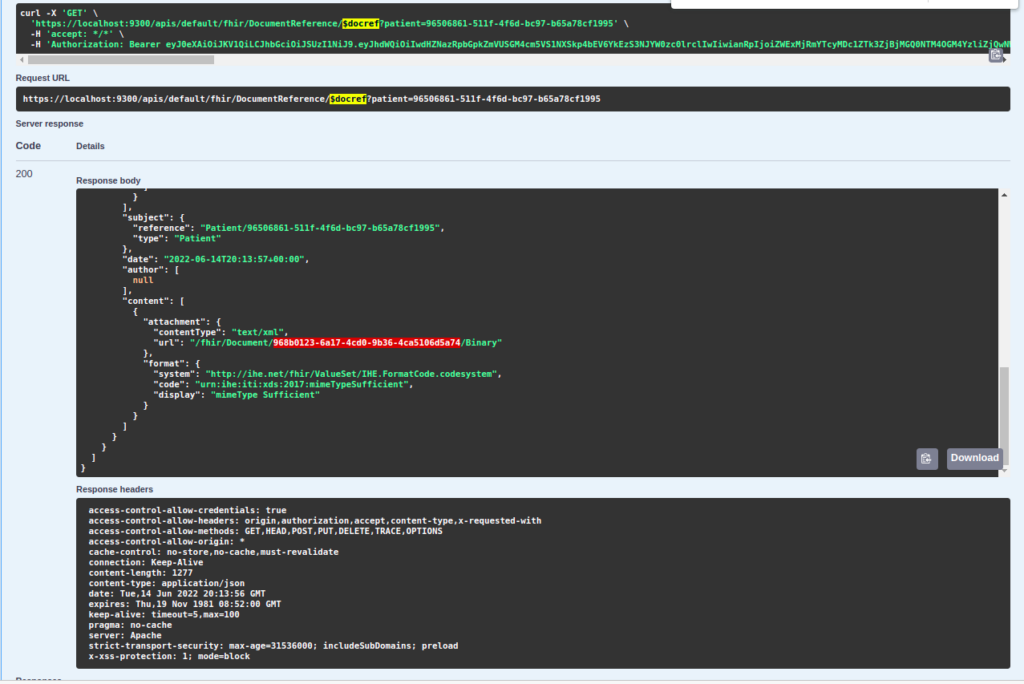
9. When the test is run it returns a generated DocumentReference. The URL to download the CCDA is in the entry.content.attachment.url field, as highlighted in the following image:
10. Now, copy the UUID for the Document, and then hit the Swagger /fhir/Document/{id}/binary endpoint to get the URL:
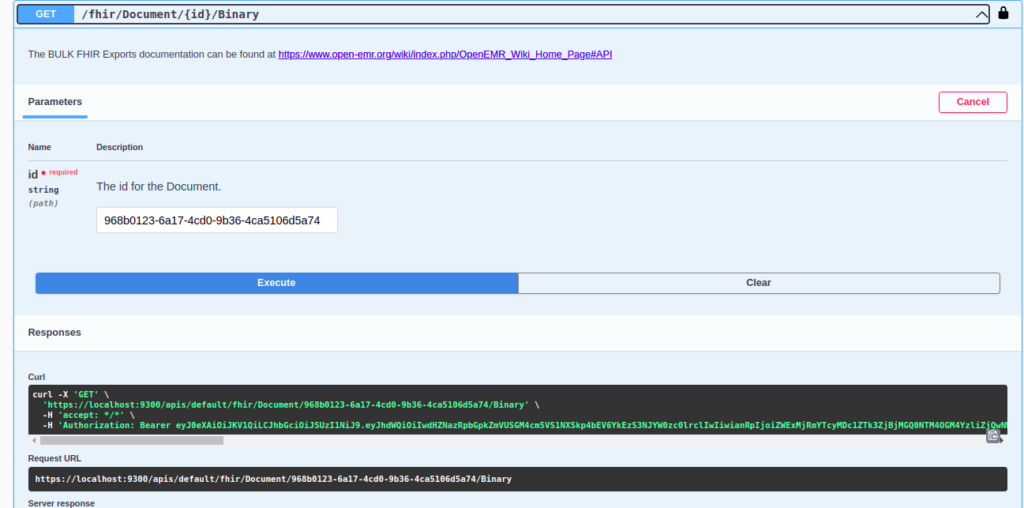
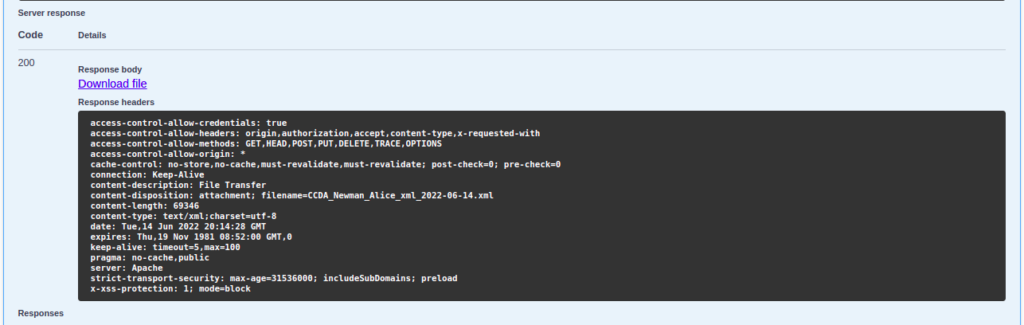
11. When the execute button is pressed on the endpoint Swagger will fetch the file and return a download link to download the file:
Done.